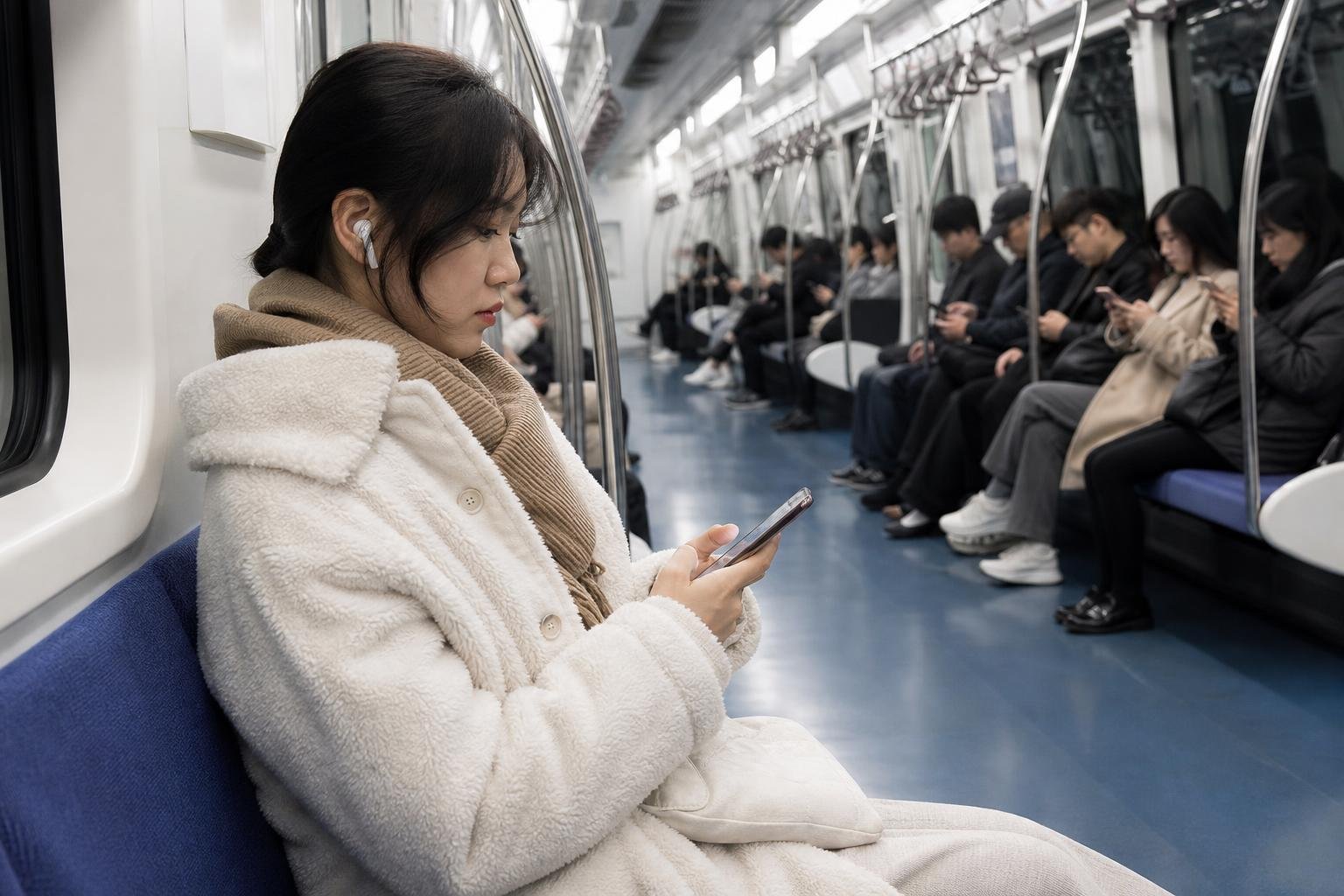
Public Wi-Fi in Korea can be useful for maps, messages, translation, and quick browsing, but it should supplement—not replace—a mobile connection. The safest approach is to connect only to a network whose name you can verify, use a secure option when available, and keep an eSIM or SIM active for navigation and sensitive tasks.
Where foreigners can usually find public Wi-Fi
Free Wi-Fi is commonly available in airports, subway and railway stations, buses, public offices, resident centers, welfare facilities, traditional markets, libraries, parks, tourist areas, cafés, hotels, and other public buildings. Availability depends on the city, building, vehicle, and network operator, so a hotspot shown in one place should not be assumed to work everywhere.
The Korean government-supported network is commonly identified as Public WiFi Free. On some buses, the network name may include the route number, such as Public WiFi Free_노선번호. Seoul also operates municipal networks, and cafés or shopping centers may use their own names. These alternatives are legitimate possibilities, but you should confirm the name from a sign, information screen, staff member, or official notice before connecting.
The official Public Wi-Fi service provides a location search tool, but coverage maps are not a guarantee of strong service at every seat or on every journey. A crowded station, moving bus, thick building walls, or an overloaded access point can make a listed hotspot slow or unreachable.
How to join Korea’s official public Wi-Fi
Using Public WiFi Free
- Open your phone’s Wi-Fi settings and scan for nearby networks.
- Select Public WiFi Free or the clearly identified bus version.
- Open your normal web browser. The login page may not appear automatically, especially if another app opens links by default.
- On the public Wi-Fi landing page, select the button to start using the service.
- Confirm that a webpage loads before relying on the connection.
The free network may use a captive portal, which means your phone can show “connected” while internet access is still blocked until you accept or select the service button. If the page does not appear, open the browser manually and visit a simple non-sensitive webpage. Turning Wi-Fi off and on can also trigger the portal again.
Some official free hotspots limit a connection session to approximately one hour. If the connection stops during a longer stay, disconnect and reconnect rather than assuming your phone or account is broken.
Using Public WiFi Secure
When it is available, Public WiFi Secure is generally the better choice. The official service encrypts traffic between your device and the access point. It is not present at every location, and encryption at that stage does not protect you from phishing websites, fake login pages, malware, or a compromised account.
- Select Public WiFi Secure from the Wi-Fi list.
- Use the network’s published settings: username wifi and password wifi.
- On Android, the network may ask for PEAP or certificate settings. Follow the official device instructions and avoid installing an unexpected certificate from an unverified source.
- On iPhone, enter the credentials and approve the certificate only when the network name and details match the official service.
- Wait for the phone to complete authentication and receive an IP address.
Device menus vary by Android version, iPhone model, and manufacturer. If the secure network repeatedly fails, using mobile data is usually faster and safer than changing advanced enterprise Wi-Fi settings at random.
How to recognize a suspicious network
Do not choose a network simply because its name looks familiar. Attackers can create names such as Public WiFi Free Fast, Public_WiFi_5G, or a fake café network to attract nearby users. A genuine network name should match the sign or information provided at that location.
- Check the exact spelling. Extra words, unusual punctuation, or a slightly different domain on the login page are warning signs.
- Ask staff when connecting to a café, hotel, or restaurant network. Do not rely only on a network name broadcast by someone nearby.
- Reject unexpected pop-ups. Public Wi-Fi should not require you to install an unknown app, browser extension, or security certificate from a random webpage.
- Use HTTPS sites and current device software. Look for the browser’s secure connection indicator, while remembering that HTTPS alone does not prove a website is genuine.
- Forget the network afterward. This reduces the chance that your phone will automatically reconnect to a similarly named hotspot later.
What not to do on unsecured public Wi-Fi
The official Korean public Wi-Fi guidance advises caution with financial transactions, business work, logins, and services that require personal information on networks without security settings. That is practical advice for visitors as well as residents.
Avoid opening online banking, entering card details, changing important passwords, uploading identity documents, or accessing confidential workplace systems on Public WiFi Free unless you have an additional trusted security layer and understand the risks. Even on Public WiFi Secure, inspect the website address carefully because Wi-Fi encryption does not stop phishing.
For routine tasks, public Wi-Fi is usually adequate:
- Checking a train or bus route
- Translating a short phrase
- Sending an ordinary message
- Looking up an address or restaurant menu
- Downloading a small travel document
- Reading news or checking opening information
For sensitive activity, switch to cellular data, use a trusted VPN supplied by your employer or organization, or wait until you are on a private network.
Troubleshooting when the connection fails
The network is visible but the internet does not work: open the default browser manually and wait for the captive portal. If it still fails, disconnect, forget the network, and reconnect. Some phones retain an incomplete login session.
The portal is blank or loops: temporarily disable a private DNS setting, content blocker, or browser extension that may interfere with redirects. You can also turn off mobile data briefly while completing the Wi-Fi login, then turn it back on afterward.
The Wi-Fi disappears on a bus: this is normal when the vehicle moves out of coverage or changes between access points. Keep navigation loaded, save your destination, and use mobile data for the remainder of the route.
The signal is weak: move closer to the access point, entrance, information desk, or marked public facility. Wi-Fi coverage may not reach every platform, floor, or bus seat.
Public WiFi Secure will not authenticate: verify the username and password, check the device’s date and time, and make sure you selected the correct security network. If Android requests unfamiliar certificate details, stop and use mobile data rather than accepting settings you cannot verify.
When an eSIM or SIM is the better choice
Visitors who need dependable access should arrange mobile service before or soon after arrival. An eSIM is convenient for compatible unlocked phones because it can usually be installed digitally without visiting a shop. A physical SIM may be preferable if your phone does not support eSIM, if you want help at an airport counter, or if you need a local number and the selected plan includes one.
Mobile data is especially valuable when you are:
- Traveling between public hotspots
- Using navigation while walking or transferring between trains
- Ordering transport or checking a time-sensitive reservation
- Arriving late at night or traveling outside major tourist areas
- Working remotely or joining an important call
- Using two-factor authentication or account recovery
Before buying, check whether your phone is unlocked, supports the required eSIM bands and activation method, and can use Korean mobile networks. Also confirm whether the plan is data-only, whether calls or texts are included, and whether hotspot sharing is allowed. Airport rental counters and official carrier channels can be useful when you need in-person assistance, while online eSIMs are often more convenient for a short visit.
A simple safe-use routine
- Keep mobile data available for navigation and emergencies.
- Join only a network whose name you can verify.
- Choose Public WiFi Secure when it is genuinely available.
- Use free Wi-Fi for ordinary browsing, not high-risk account activity.
- Download maps, reservations, addresses, and translation tools before leaving your accommodation.
- Forget public networks after use and disable automatic joining where practical.
For foreigners, public Wi-Fi in Korea is most useful as a backup and data-saving tool. It can make a bus ride, station transfer, café stop, or visit to a public facility more convenient, but a working eSIM or SIM gives you the continuity that free hotspots cannot guarantee.