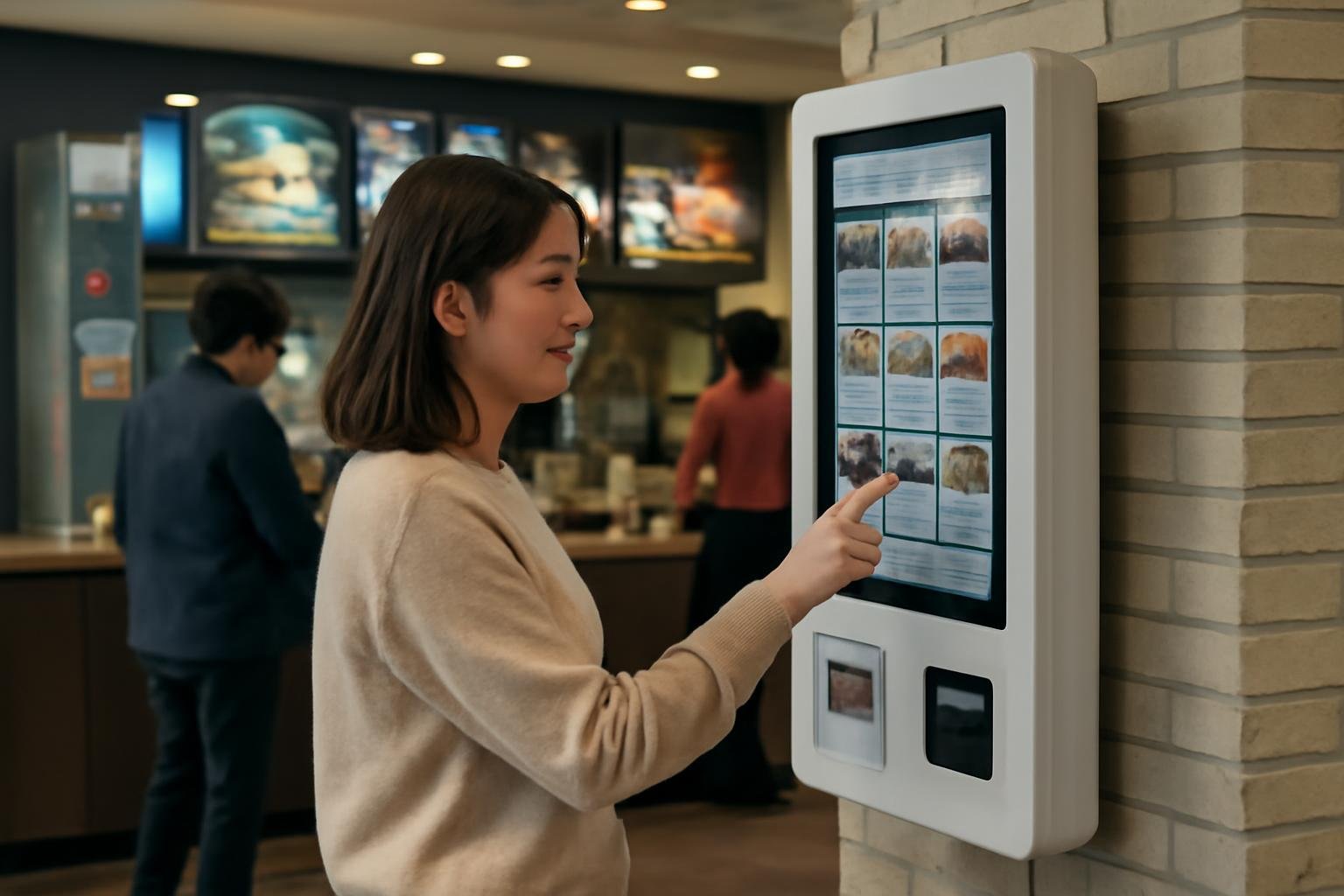
Self-service kiosks are common in Korean fast-food restaurants, including burger chains, fried-chicken shops, snack restaurants, and food courts. The basic process is straightforward: choose a language if available, select your menu items, review the order, pay, and wait for the number on your receipt or screen to be called.
The main difficulty is usually not the food menu but the payment system, unfamiliar Korean labels, and options that appear only after you select an item. This guide explains the process in the order you will encounter it, with Korean words that help when the kiosk does not offer English.
Before you start: check whether the kiosk accepts your payment method
Look at the payment symbols on the kiosk or ask an employee before building your order. Many kiosks accept Korean credit or debit cards, mobile payments, and sometimes cash. Foreign cards are often accepted, but not every kiosk can process every overseas-issued card, especially if the card requires a signature, a separate authentication step, or magnetic-stripe use.
Some machines accept contactless payment, while others require you to insert the card. A foreign card may also be declined even when the restaurant’s staffed counter can process it. If payment fails, take your order number or screen to an employee and ask whether you can pay at the counter.
Useful phrases include:
- 외국 카드 돼요? (oeguk kadeu dwaeyo?) — “Does a foreign card work?”
- 카드 결제 돼요? (kadeu gyeolje dwaeyo?) — “Can I pay by card?”
- 현금 결제 돼요? (hyeongeum gyeolje dwaeyo?) — “Can I pay with cash?”
Step 1: Choose a language
Many restaurant kiosks display a language button near the top or bottom of the first screen. Look for:
- 한국어 — Korean
- English — English
- 中文 — Chinese
- 日本語 — Japanese
English support varies by location and franchise. A kiosk may translate category names but leave individual menu descriptions, allergen information, or promotional terms in Korean. If you cannot find a language button, an employee may be able to switch the screen manually or help you order at the counter.
Step 2: Select dine-in or takeaway
The kiosk may ask whether you will eat in or take the food away. Common Korean options are:
- 매장 식사 (maejang siksa) — dine in
- 포장 (pojang) — takeaway or packaged to go
At some restaurants, this choice affects packaging, utensils, or the final price. In a food court, you may be asked for your table number later, or you may receive a pager or electronic notification instead of waiting at the counter.
Step 3: Choose a menu category
Menu categories often include burgers, set meals, chicken, sides, drinks, desserts, and limited-time items. A set meal is commonly called a 세트 (sete) and usually includes a main item, a side, and a drink. An individual item may be labeled 단품 (danpum).
Do not assume that the first item shown is the cheapest or most basic option. Kiosks frequently highlight promotions, new products, or combination meals. Check the price and contents before tapping the item.
Step 4: Customize the item
After selecting a burger, sandwich, or other main dish, the kiosk may open a customization screen. Depending on the restaurant, you may be asked to choose:
- the size of the meal or drink;
- an additional side;
- extra cheese, sauce, or toppings;
- spice level or preparation style;
- an alternative drink;
- single-use items such as straws or utensils.
Some options cost extra. Look for a price increase beside the option or check the running total after each selection. If you do not want an add-on, choose the standard option or tap the button that means “no selection” rather than assuming the kiosk will skip the screen.
Useful Korean labels include:
- 추가 (chuga) — add-on or extra
- 변경 (byeongyeong) — change
- 선택 안 함 (seontaek an ham) — do not select
- 다음 (daeum) — next
- 이전 (ijeon) — previous
Step 5: Add the order to your basket
The button may say 담기 (damgi) or 주문 담기 (jumun damgi), meaning “add to order.” You can usually return to the menu and add more items before paying.
Check the basket carefully. Confirm the number of items, whether a set meal includes its advertised side and drink, and whether an unwanted add-on was selected. The total is usually labeled 합계 (hapgye) or 총액 (chongaek), meaning total amount.
If you need to remove something, look for:
- 삭제 (sakje) — delete or remove
- 수량 (suryang) — quantity
- 취소 (chwiso) — cancel
Step 6: Proceed to payment
The payment button may say 결제하기 (gyeoljehagi) or simply 결제 (gyeolje). Before tapping it, make sure the order and total are correct. Once payment is completed, cancellation may require employee assistance and a refund may not be immediate.
Common payment choices include:
- 신용카드 (sinyong kadeu) — credit card
- 체크카드 (chekeu kadeu) — debit card
- 삼성페이 (Samsung Pay) or other mobile-payment options
- 현금 (hyeongeum) — cash, if the kiosk supports it
Insert or tap your card only when the machine prompts you. Keep the card in place until the kiosk tells you to remove it. If the screen returns to the basket or shows a payment error, do not pay again immediately; first check whether a receipt was printed or whether the transaction appears in your banking app.
Step 7: Keep the receipt and find your order number
After successful payment, the kiosk usually prints a receipt showing an order number. This number may also appear on the payment screen or be sent through a restaurant app. Look for words such as:
- 주문번호 (jumun beonho) — order number
- 영수증 (yeongsujeung) — receipt
- 대기번호 (daegi beonho) — waiting number
Some restaurants call numbers aloud in Korean, while others show them on a monitor. Listen for your number or watch the display. If you miss it, show the receipt to the pickup counter and ask where to collect the order.
What to do if you need help
Employees are accustomed to helping customers with kiosks. You can point to the screen and say:
이거 주문하고 싶어요. (igeo jumunhago sipeoyo) — “I’d like to order this.”
For a payment or order problem, try:
- 주문이 안 돼요. (jumuni an dwaeyo) — “The order is not going through.”
- 결제가 안 돼요. (gyeoljega an dwaeyo) — “The payment is not going through.”
- 영어 메뉴 있어요? (yeongeo menyu isseoyo?) — “Is there an English menu?”
If the kiosk is difficult to use, ask whether you can order at the counter: 카운터에서 주문해도 돼요? (kaunteoeseo jumunhaedo dwaeyo?) — “Is it okay to order at the counter?” Some locations may direct all customers to kiosks during busy periods, but staff can usually explain the available alternative.
Common mistakes to avoid
- Choosing the wrong meal type: Check whether you selected dine-in or takeaway before paying.
- Missing a required choice: A screen may require you to choose a drink, side, or “none” option before continuing.
- Paying twice: After an error, verify the transaction before trying again.
- Leaving without the order number: Keep the receipt until you receive your food.
- Assuming every option is available: A menu photo may remain on screen after an item sells out. Staff can confirm availability.
- Overlooking special dietary needs: Kiosk translations may not fully explain ingredients or cross-contact. Ask an employee if an allergy is involved.
Once you know the sequence—language, dine-in or takeaway, menu, customization, basket, payment, and pickup—Korean restaurant kiosks are usually faster than they first appear. When the English interface is incomplete or a foreign card fails, the simplest solution is to keep the receipt or screen visible and ask an employee to finish the order with you.